

Foxeevna
Гуру форума
- Регистрация
- 1 Апр 2009
- Сообщения
- 158
- Реакции
- 63
- Автор темы
- #1
PayMoney.online — Payment Gateway for OpenCart 4
Accept payments on your OpenCart 4 store through PayMoney.online — secure hosted checkout with HMAC-SHA256 signed requests and server-verified IPN. No core files modified.
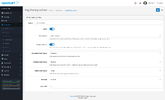
PayMoney.online Payment Gateway for OpenCart 4
Accept online payments on your OpenCart store via PayMoney.online. Customers are redirected to a secure hosted checkout, pay, and return to your store — while the order is confirmed server-to-server through a signed IPN (webhook). The extension is self-contained (everything lives in extension/paymoney/) and installs through the built-in OpenCart Installer, so no core files are changed.
Compatibility: OpenCart 4.0.2.0 – 4.1.x · PHP 8.0+ (cURL & OpenSSL)
Key features
- Hosted checkout — customers pay on the secure PayMoney.online page
- HMAC-SHA256 signed API requests for every call
- Secure IPN (webhook) confirmation with signature verification — the authoritative source of payment status
- Amount & currency cross-check and idempotent order updates
- Sandbox and Production environments with environment-aware credentials
- One-click "Test Connection" button in the admin to validate credentials before going live
- Configurable order statuses (Completed / Pending / Failed), geo zone and sort order
- Bilingual admin & storefront: English and Russian
- Installs via OCMOD .ocmod.zip — no core edits
Requirements
- OpenCart 4.0.2.0 – 4.1.x
- PHP 8.0+ with cURL and OpenSSL
- Valid SSL certificate
- A PayMoney.online merchant account (Merchant ID, API Key, API Secret Key)
Installation (about 3 minutes)
- Download the extension (paymoney.ocmod.zip).
- In the admin go to Extensions → Installer, upload the ZIP, then click the green Install button to extract the files.
- Go to Extensions → Extensions, choose type Payments, find PayMoney.online and click Install, then Edit.
- On the API Credentials tab enter your Merchant ID, API Key and API Secret Key for the selected environment, then press Test Connection.
- Set Environment = Sandbox, place a test order and pay with the demo wallet to verify checkout and IPN.
- Switch to Production with live keys (after merchant approval) to accept real payments.
Notes
- The order currency must be enabled for your merchant and backed by an active wallet.
- Which gateways appear on the checkout page is controlled on the merchant side (Merchant → Config → Payment Gateway Controls).
- Production API access becomes available after merchant approval — test in Sandbox until then.
Direct download: Для просмотра ссылки Войди